A Guide to Google Workspace Studio
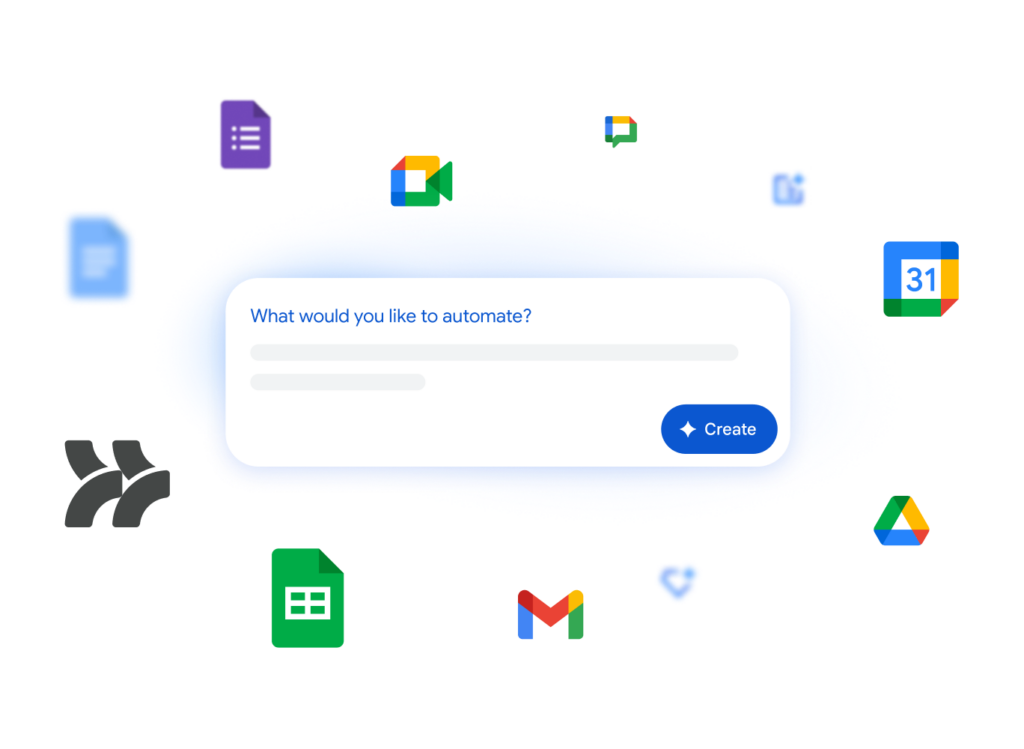
Have you ever wanted to automate those repetitive tasks we all perform as part of our working day? Well Google recently released a brand new app called Workspace Studio that allows you to automate everything from summarising documents to sending you updates on the latest news on technology. Google Workspace Studio allows you to do all of this using the power of Gemini!
💡All you need is to bring along an idea to automate a task and let Gemini help you do the rest!
📌 Even if you or your students don’t have access to Gemini features, you can still use Workspace Studio.
Creating your first flow
Workspace Studio has a range of templates for you to start from such as:
- Get a daily summary of unread emails
- Auto-add email attachments to Drive
- Auto-create tasks for me from meeting transcripts
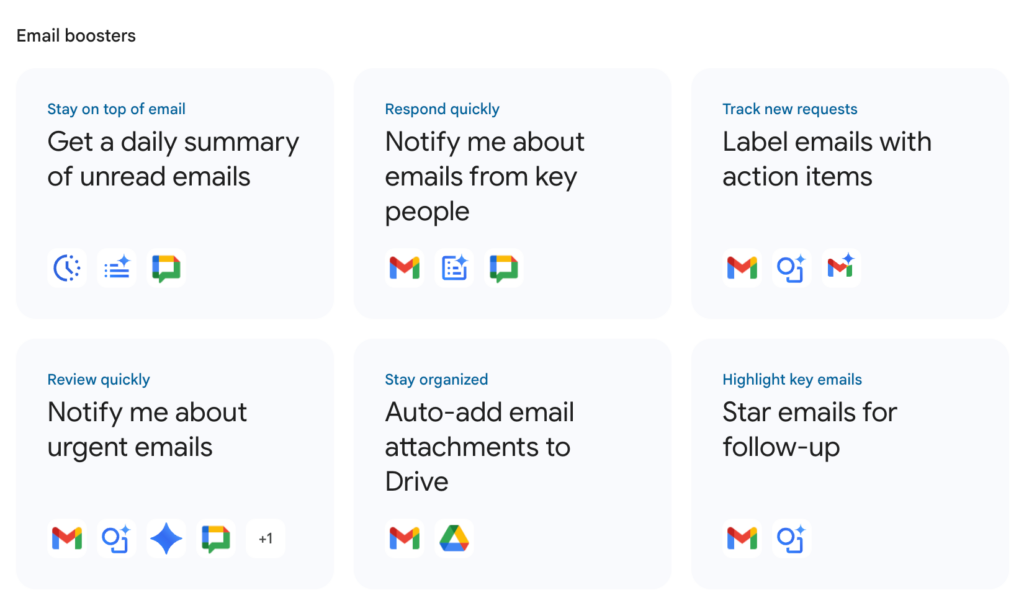
You could also start from a blank flow or get Gemini to help you create one such as:
- Update me whenever someone submits a form to take leave
- Send me a message whenever my group members upload a file to our Drive
- When I create a new task sheet, translate a copy into [language]
Using the PARTS method of prompt writing helps ensure your prompt is specific and contains key details. Click here to access a poster to learn more about PARTS prompts.
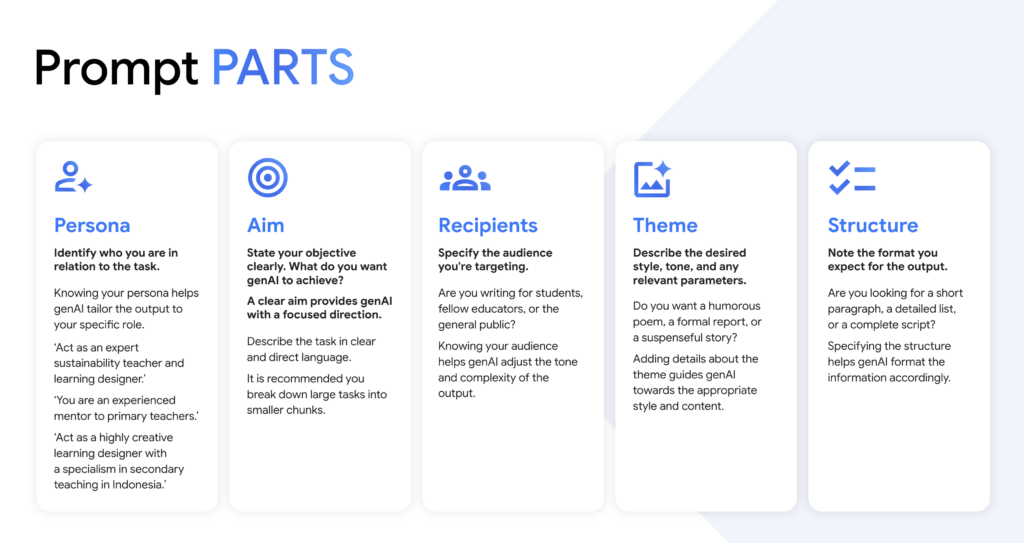
Create a flow using Gemini
In Workspace Studio, you can automate your everyday, routine tasks across Google Workspace services by creating flows.
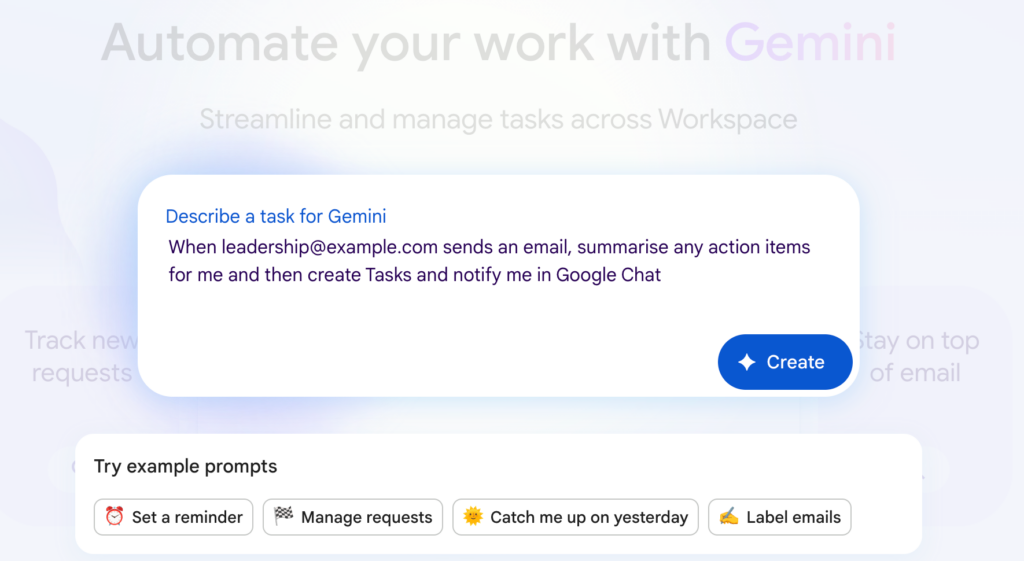
To get the best out of Workspace Studio, you should be specific about the activity that will start the flow.
| Instead of… | Try this… |
| Each week | Every Tuesday at 8 am |
| When my leader sends me a message | When I get an email from [email address] |
| When my ‘getting to know you’ Google Form is updated | When a new response comes into [link or name of file in Drive] |
Be specific about the steps that your flow will work through.
| Instead of… | Try this… |
| Send me a message | Message me in Chat after the weekly sync with my action items |
| Send a message to my team | Send a message using [Gmail/Chat] to [Insert email here] |
| Track the action items | Create Tasks from my action items in the email |
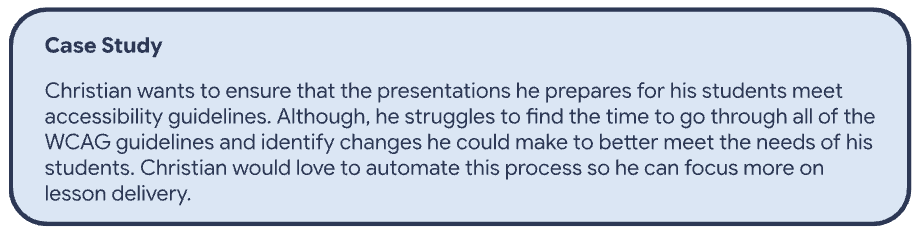
Take a look at this example Workspace Studio experience below.
Flow building blocks
A flow has 3 main parts:
Starter: This is the event or schedule that starts your flow. For example, when you get an email message from specific people.
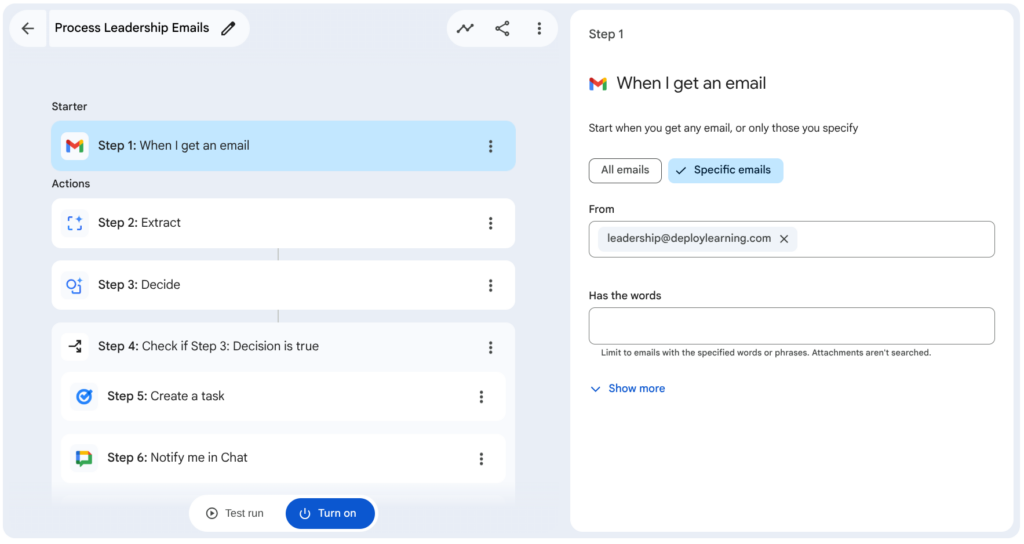
Steps: These are the actions that the flow does after it starts. Most flows have several steps. For example, ask Gemini to extract action items, assign them as tasks and update you in Chat.
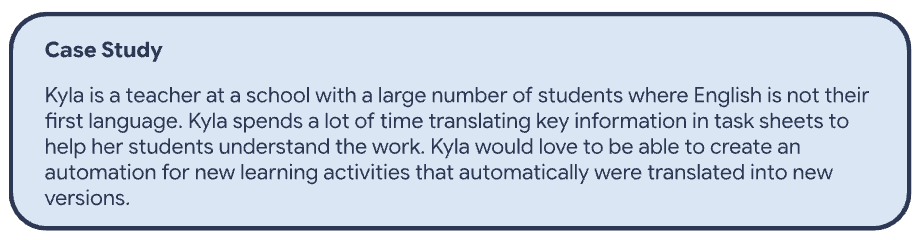
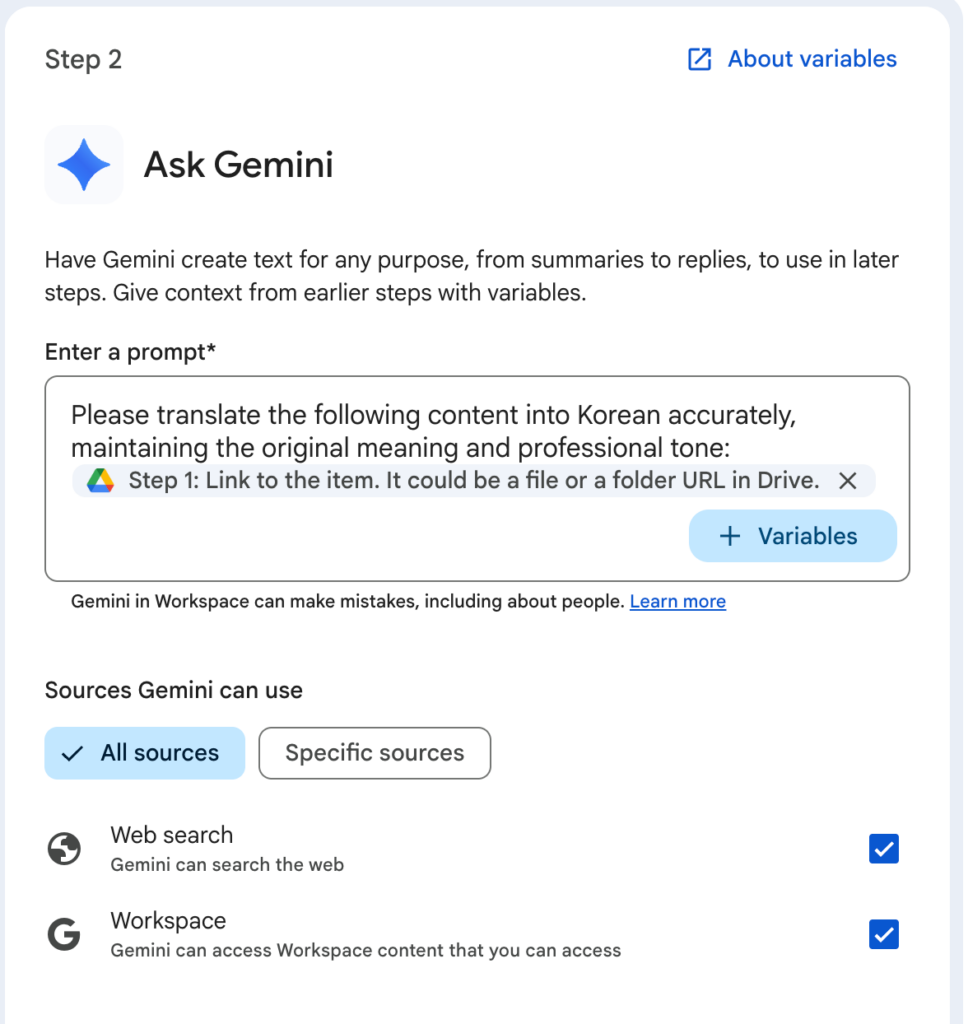
Here is an example of using Gemini to translate new task sheets within Workspace Studio submissions and then using that variable in another step to notify the user within Google Chat.
Coming soon you will be able to add a Gem as a step in Workspace Studio. This will allow you to use your specialised AI agents for a specific task.
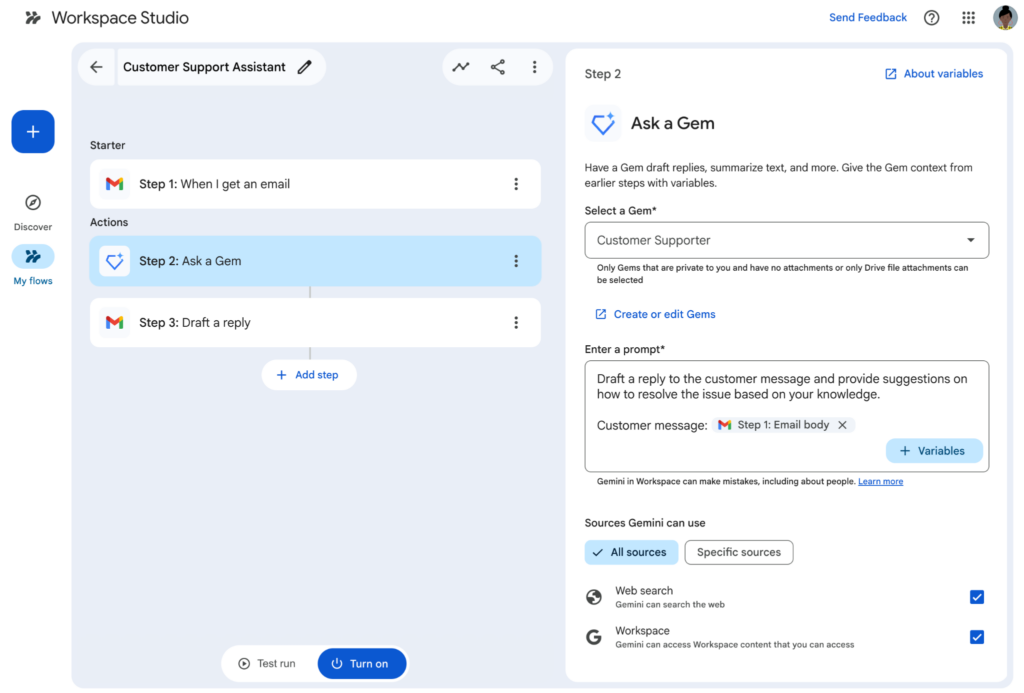
Find out more about this feature update.
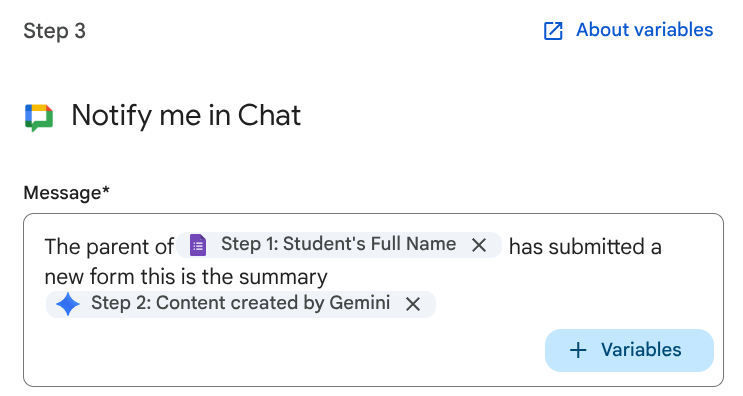
Variables: Each step has variables, which are dynamic placeholders for information that you can use in later steps. For example, field entries from a Form or a summary of an update to a Drive file.
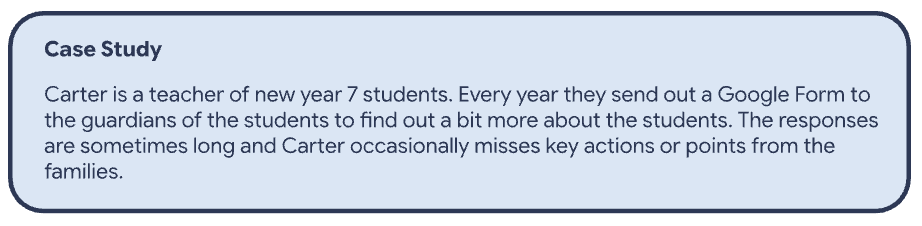
Here is an example of using Gemini to summarise information from Google Form submissions and then using that variable within another step to notify the user within Google Chat.
Get started with Workspace Studio today and start automating those workflows that take so much time out of your day.
Get even more help with Workspace Studio here.
Stay Curious!
Deploy Learning is partnering with Google Australia to elevate your teaching skills and future proof your career. Click here to explore and register for our free-of-charge events and workshops in 2026.
📖 Learn on your own time – Head over to our online courses store to check out the different courses we have on offer from our Level 1 and 2 Google Certified Educator Courses to Intro to Gen AI or Google Classroom Masterclass to the Essentials with Docs, Sheets, Gmail and Slides.
🤝 Professional Development – Reach out to us to discuss how we can partner with your school to support your professional development journey.
📣 Events – Watch this space! The 2026 Summits will be announced soon. Follow us on LinkedIn or Instagram for more information.