Top 10 Hidden Google Workspace Features Every Teacher Should Know
Boost your productivity with these underrated tools in Docs, Slides, Forms, and Gmail
As educators, time is precious—and Google Workspace offers a treasure trove of features that can help streamline your workflow, foster collaboration, and support student learning. But beyond the obvious tools, there are hidden gems that often go unnoticed.
Here are 10 underrated Google Workspace features every teacher should explore:
1. Docs: Smart Chips for Seamless Integration
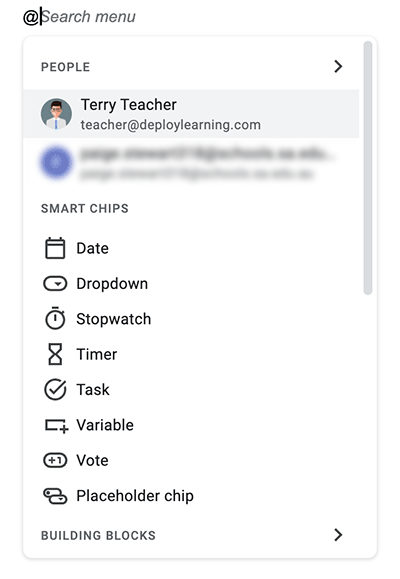
Instead of pasting messy links or manually typing information, try using smart chips. Type @ in Google Docs and you’ll see a dropdown menu for people, files, dates, calendar events, and more.
💡 Use case: Insert links to assignments, lesson plans, or collaborators directly in your document—cleaner, clickable, and context-rich.
2. Slides: Master Slide Editing for Uniformity
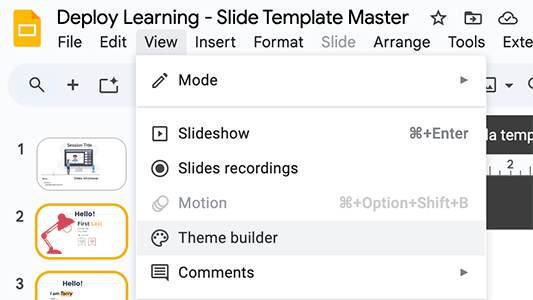
Head to View > Theme Builder (formerly called “Master Slides”) to edit layouts and elements across all slides in a presentation. You can pre-format text boxes, footers, and background images.
💡 Use case: Create reusable templates for lessons, timers, or student projects that keep design consistent and minimise setup time.
3. Forms: Response Validation for Smarter Quizzes
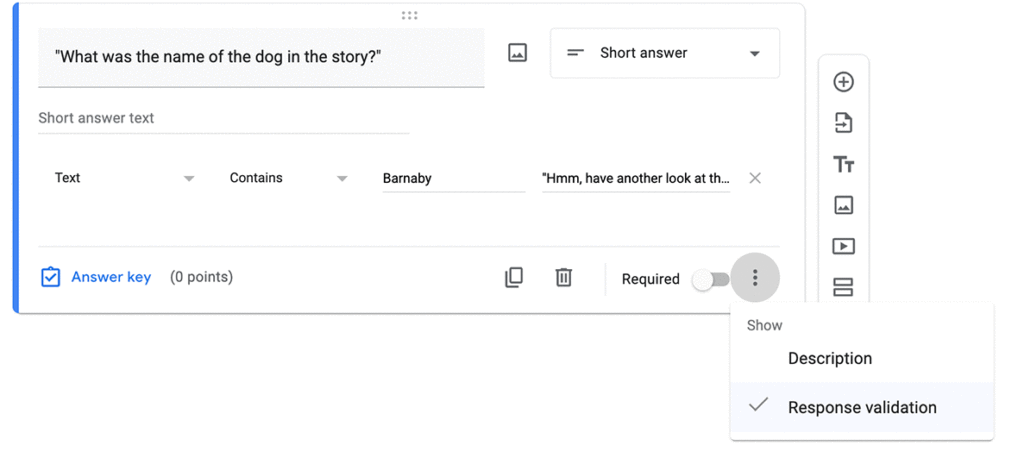
Google Forms has a powerful but often overlooked feature: response validation. You can require students to enter answers that meet certain criteria (e.g., number ranges, specific text formats).
💡 Use case: Ensure numerical answers in math quizzes fall within a valid range, or require email format for sign-ups.
4. Gmail: Schedule Send for Better Timing
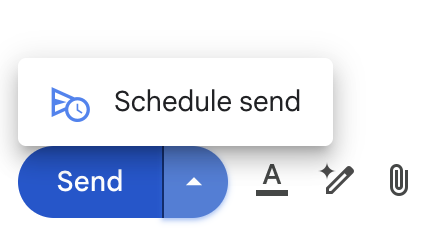
Click the arrow next to the “Send” button in Gmail and select Schedule send. Choose when your message gets delivered—perfect for early-morning prep or weekend planning.
💡 Use case: Write parent or admin emails after hours but schedule them to send during work hours to respect boundaries.
5. Docs: Voice Typing for Quick Note-Taking
Under Tools > Voice typing, turn on your mic and speak your notes aloud. Google Docs transcribes in real time—great for hands-free drafting or capturing ideas on the fly.
💡 Use case: Dictate lesson plan ideas, meeting notes, or reflections during a busy day.

6. Slides: Insert Audio for Narrated Presentations
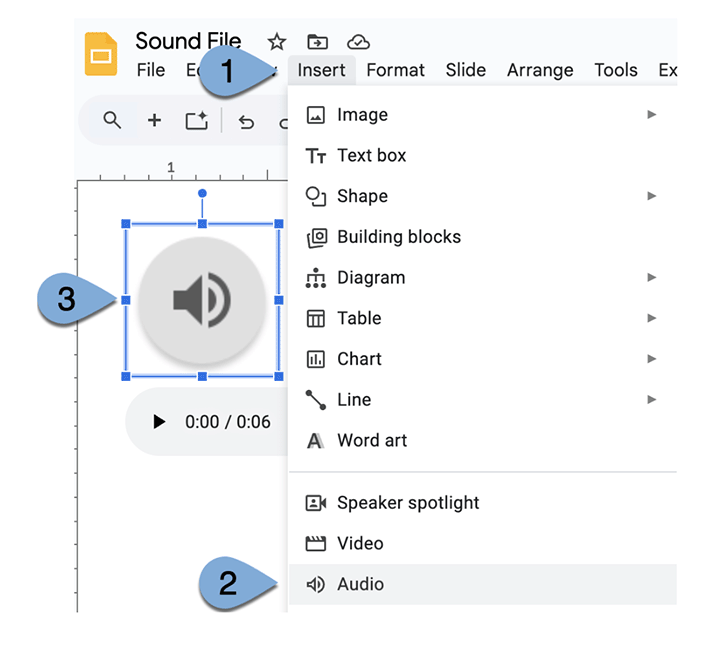
Go to Insert > Audio to add sound files to your slides. Combine with screen recording tools for interactive, flipped lessons.
💡 Use case: Record and embed brief explanations or instructions for students to review at their own pace.
7. Forms: Shuffle Question Order to Prevent Cheating
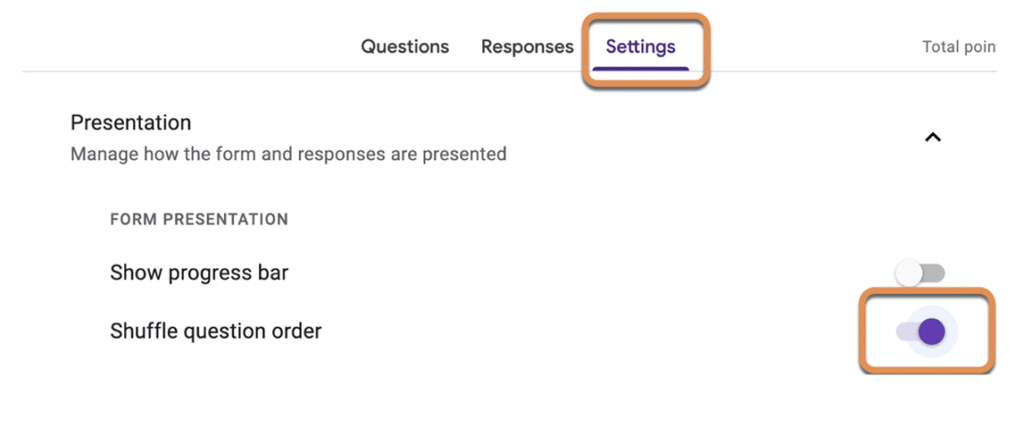
In Google Forms quiz settings, enable “Shuffle question order”. This automatically randomises the question sequence for each student.
💡 Use case: Reduce copying during online assessments or quick checks for understanding.
8. Gmail: Templates for Reusable Replies
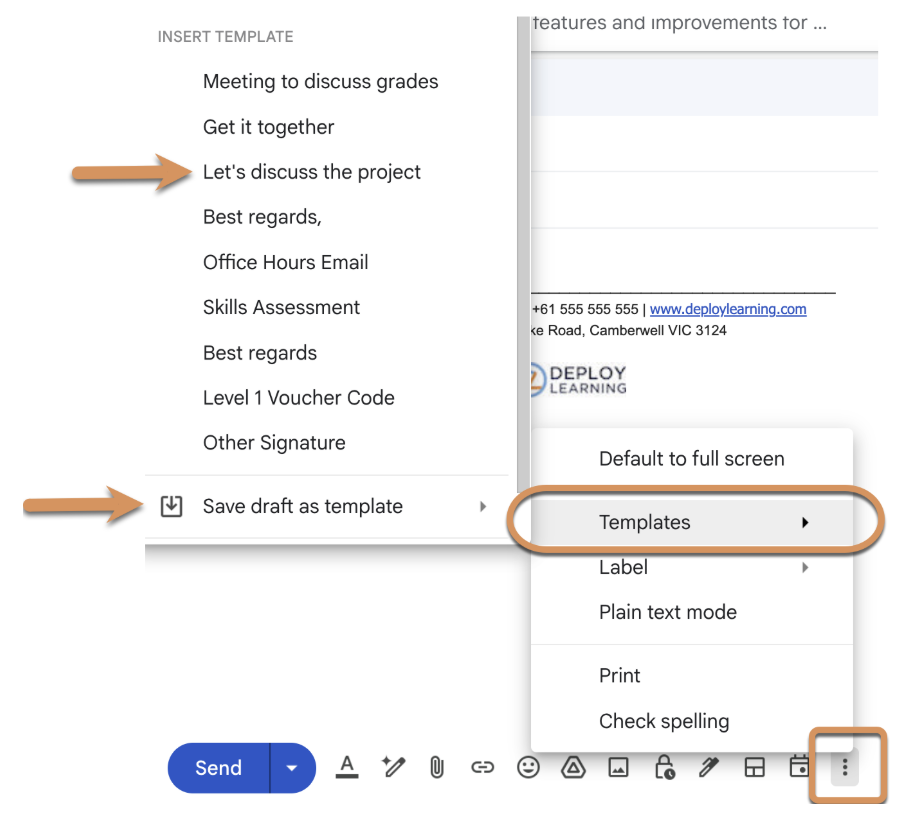
Under Settings > Advanced, enable Templates. Then create canned responses for emails you send repeatedly—like parent updates or meeting confirmations.
💡 Use case: Save time writing nearly identical emails week after week.
9. Docs: Version History to Track Student Revisions
Use File > Version History > See version history to view all edits made to a document. You can name versions and restore older drafts if needed.
💡 Use case: Monitor student contributions in group work or provide feedback based on draft progression.

10. Slides: Publish to Web for Simplified Sharing
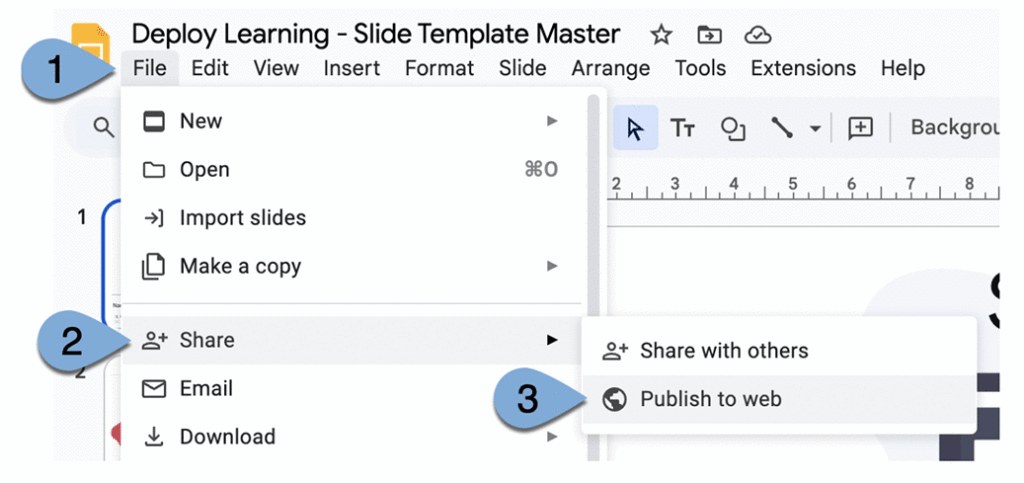
In File > Share > Publish to web, you can generate a link that displays your Slides as a clean, fullscreen presentation—no clutter, no editing access.
💡 Use case: Share class slides with students or parents in a view-only format without sending them through Google Drive.
Which will you try first?
Google Workspace is far more than just Docs and Drive. These hidden features—when used intentionally—can save hours, improve your communication, and enhance the learning experience for your students.
Try one or two of these tips this week, and you might be surprised how much smoother your teaching life becomes.